
Quickly invite a new user to access your NRDR facility and registry data.
At a Glance
- Available to Corporate Account Administrators (CAA), Facility Administrators (FA), and Registry Administrators (RA).
- Create a user profile and send an invitation email.
- Invitations expire after 10 days.
- Expired invitations can be resent.
Who Can Invite Users?
| Role | Can Invite Users? |
|---|---|
| Corporate Account Administrator | Yes |
| Facility Administrator | Yes |
| Registry Administrator | Yes (Facility Users only) |
Invitation Process
Users
↓
Add New User
↓
Enter User Details
↓
Send Invitation
↓
User Activates Account
Send an Invitation
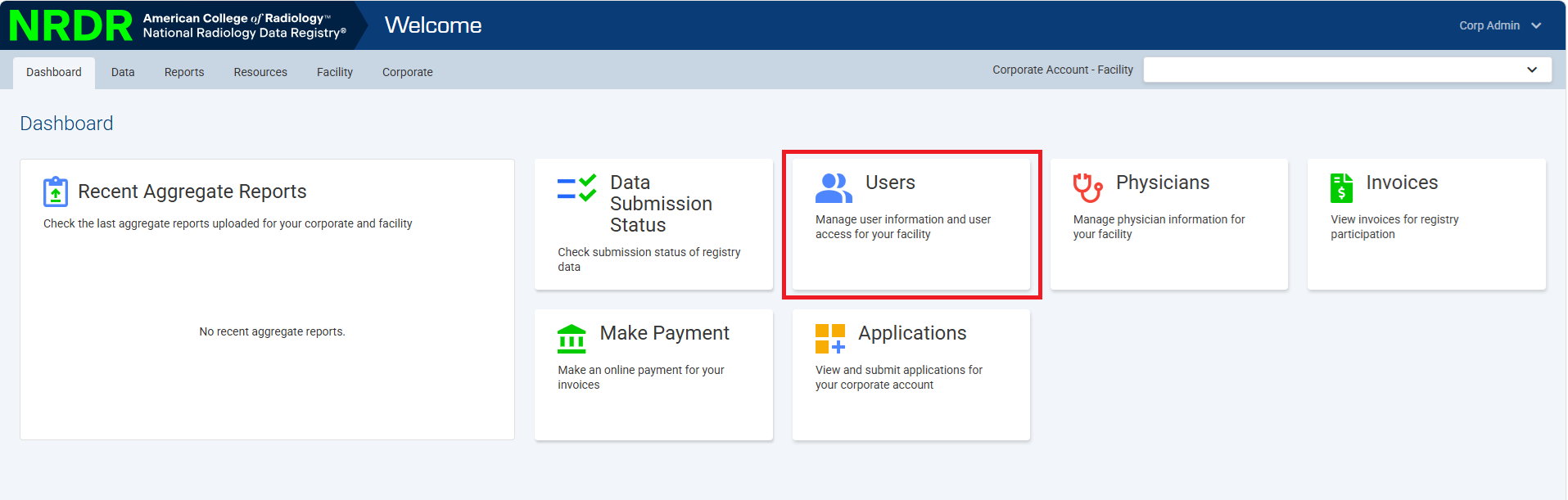
- Navigate to Users from Dashboard.
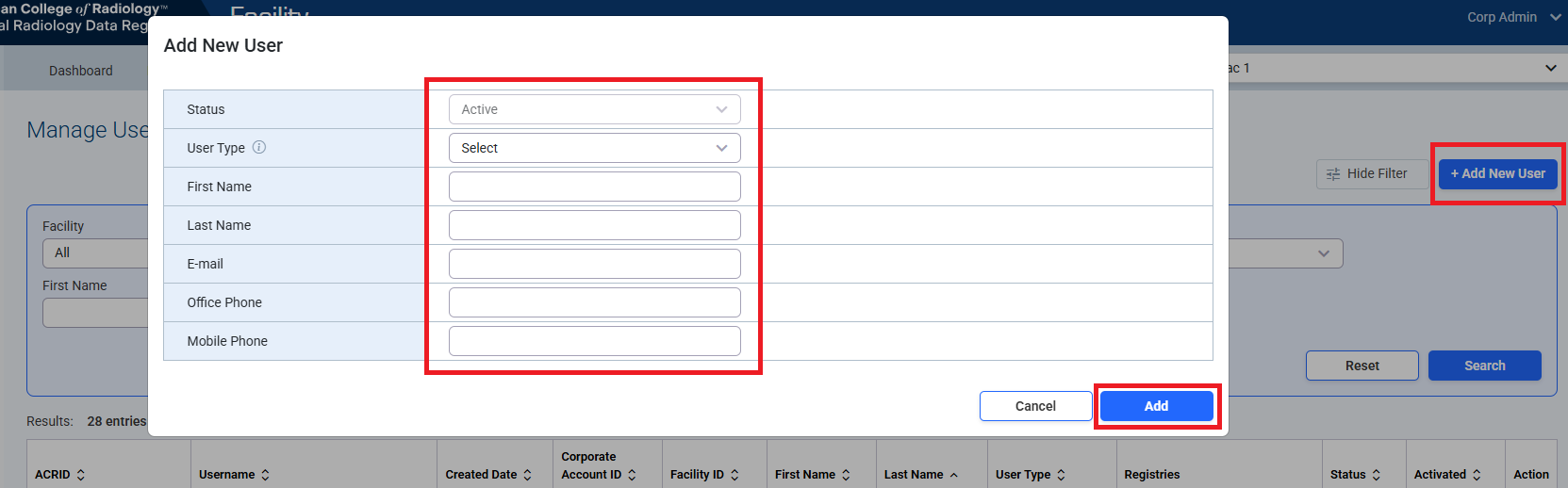
- Click Add New User.
- Select the appropriate User Type.
- Enter the user's:
- First Name
- Last Name
- Email Address
- Leave User Account set to New User.
- Complete any additional required fields.
- Click Add to create the profile and send the invitation email.
Important:
- Registry Administrators can only create Facility User accounts.
- Corporate Account Administrators and Facility Administrators can create any user type.
- Selecting Facility Administrator replaces the current Facility Administrator for that facility.
- Physician Users must be added through the Manage Physicians page.
What Happens Next?
- The user receives an invitation email.
- They select the Registration Confirmation link.
- On the activation page, they choose No when asked if they already have a registered NRDR account.
- Their name and email are automatically populated.
- They create a username and password.
- They click Continue to activate their account.
Success: Once activation is complete, the invitation link immediately expires and cannot be reused.
Expired Invitations
Invitations expire after 10 days.
If an invitation expires, locate the user in the Manage User Profiles table and select Resend Invite.
Need Help?
Contact NRDR Support to request support.
Contact NRDR Support to request support.