As part of the Merge Patients function on the NRDR portal, users have the ability to merge a large number of patients by downloading an Excel template from the portal, filling in the patient IDs to be merged, and uploading the template.
Perform the function as follows:
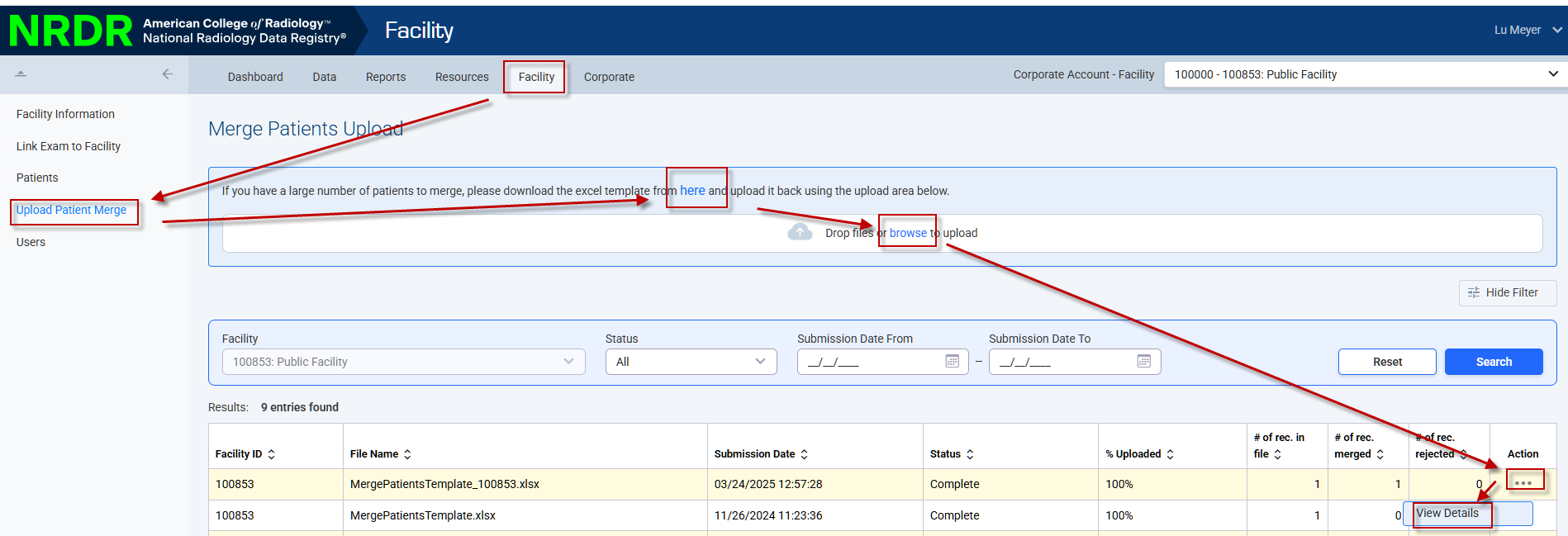
Click Facilities in the top menu from any page in the NRDR portal.
Click Upload Patient Merge in the left menu.
Click the word here, colored blue in the text, to download an Excel template.
Complete the template:
The template has two columns. In the first column, enter the NRDR patient ID that should be retained after the merge. In the second column, enter one or more NRDR patient ID’s whose NRDR records should be reassigned to the surviving NRDR patient ID.
For example:

In this example, all NRDR records for patients 456 and 789, regardless of registry, will be reassigned to patient 123. The patient demographic information for patients 456 and 789, such as name and date of birth, will be deleted. The patient demographic information will be retained from patient 123 only.
Upload the template by clicking browse or dropping it in the space provided.
Click the ellipsis (...) in the Action column, next to the file you uploaded.
Click View Details.
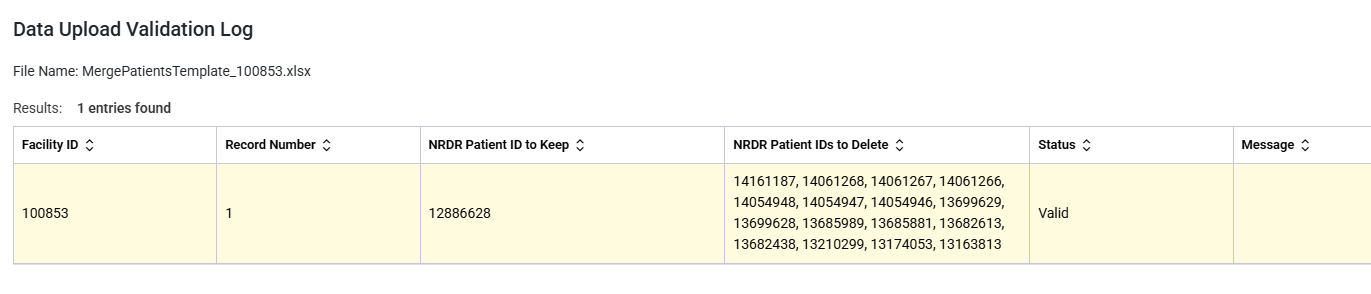
Clicking View Details will show you the status of the records you uploaded.