
LCSR participants can maintain a scanner dictionary to help save time when submitting an exam form to the registry. By maintaining the dictionary users can select a scanner from a picklist to automatically populate the scanner settings when entering data into the the LCSR exam form.
Scanners are managed in the Data section of the registry. You can add a new scanner by clicking +Add New Scanner or search for an existing scanner by name, manufacturer, status, or by any facility ID associated with your corporate account. To update an existing scanner click on the three dots in the Action column.
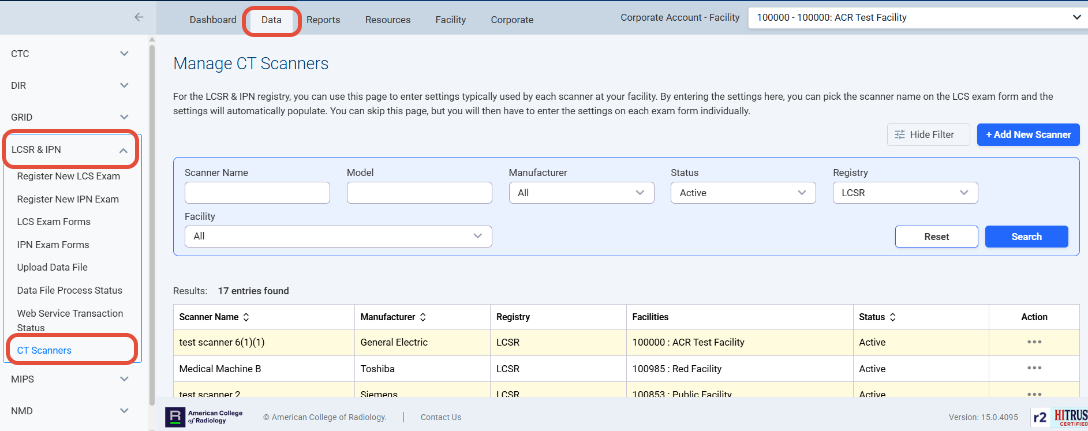
Edit or enter the following fields for each scanner record. All fields are required
Field Name | Description |
Scanner Name | Enter a distinctive name to identify the scanner |
Status | Select Active or Inactive. Inactive scanners do not appear in the scanner pick-list when entering data into the exam form. |
Manufacturer | Select a manufacturer. |
Model | Enter model number |
Reconstructed image width (nominal width of reconstructed image along z-axis) | Enter reconstructed image width |
Facilities | Indicate for which facilities the scanner may be selected |