
Create and manage Physician Groups for MIPS reporting within NRDR.
Important: A Physician Group must be created before you can add and associate a Physician Group Tax Identification Number (TIN). Both a Physician Group and TIN are required when using the MIPS Portal, even if clinicians plan to submit data to CMS as individuals.
What is a Physician Group?
A Physician Group is a custom name used to identify one or more clinicians who are submitting data to CMS for MIPS reporting. After creating the group, you can associate facilities and TINs with it.
Quick Process Overview
Step 1: Create a Physician Group
↓
Step 2: Associate Facilities
↓
Step 3: Add the Physician Group TIN
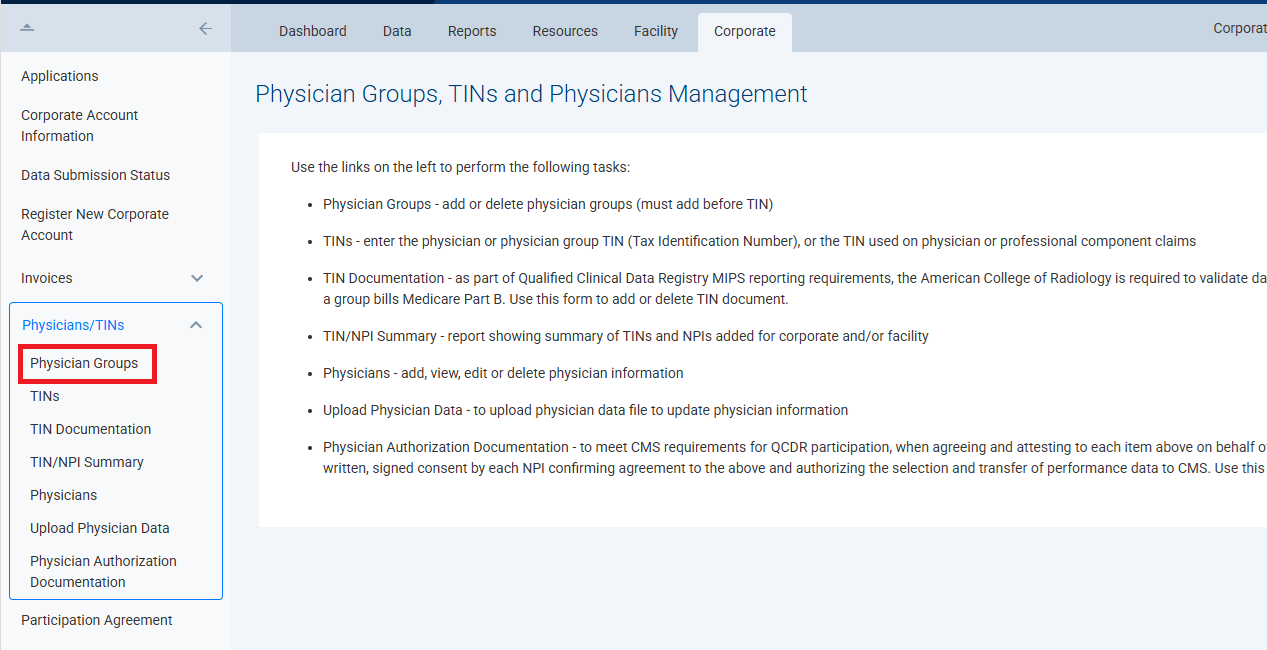
Create a Physician Group
- From the Corporate menu, select Physician Groups.
- Click Add New Physician Group.
- Enter a unique and descriptive Physician Group name.
- Select the facility or facilities that should be associated with the group.
- Click Save.
Tip: Selecting the correct facilities is important because the Physician Group will only be available for those facilities when adding Physician Group TINs.
Manage Existing Physician Groups
After saving, the Physician Group appears in the Physician Groups table.
- Edit – Update the Physician Group name or associated facilities.
- Delete – Permanently remove the Physician Group.
Need Help?
If you need assistance creating or managing Physician Groups, contact NRDR Support.
If you need assistance creating or managing Physician Groups, contact NRDR Support.