
The Incidental Pulmonary Nodule (IPN) component of the Early Lung Cancer Detection Registry (ELCDR) collects data on incidental pulmonary nodules identified outside of lung cancer screening exams. This information supports quality improvement efforts and helps advance understanding of early lung cancer detection practices.
IPN data are recorded on the IPN Exam Form, which includes the following nine sections:
Facility ID
Identifies the facility where the exam was performed.Exam IDs
The Registry IPN Exam ID is automatically assigned by the system.
The Exam Unique ID is optional and may be used to track the exam in your internal records.
Patient Information
Includes patient identifiers, demographic details, and cancer risk level.Exam Data
Captures information such as the radiologist’s NPI, imaging modality, and anatomic area examined.Recommendation Details
Documents the guideline used, recommended modality, and recommended follow-up interval.Overall Nodule Details
Provides information on nodule features, including stability and frequency.Highest Risk Nodule Details
Includes size and density of the nodule of greatest concern.Follow-up Data
If follow-up is not recommended, this section is disabled.
If follow-up is recommended, this section should be left blank until:
(a) the follow-up procedure is completed, or
(b) the patient is lost to follow-up.
Name of Person Submitting the Form
This field is automatically populated.
For detailed definitions of each data element, refer to the LCSR & IPN Data Dictionary.
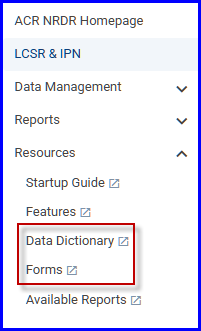
A printable Exam form is also available for download to assist you with your internal workflow. However, data collected on printable forms must be submitted to the ELCDR via one of the three submission methods indicated below.
Note: Please do not mail printed forms to the ACR.
IPN Data Submission Methods
There are three options for submitting data to the ELCDR:
An online data entry form is available for manual data entry. Refer to Manual Data Entry Instructions for a general overview of the process and IPN Manual Entry: Register New Exam for how to start a new exam.
Data may be submitted for multiple exams simultaneously via flat file upload to the registry. See IPN Data File Upload for details.
Web-based data transmission allows you to send data directly from your software vendor or IT department, saving time and reducing the risk of errors.
Your facility is not obligated to use just one submission method. For example, you may choose to upload data as a flat file and then edit any of the uploaded exams via manual data entry.
Updating an Exam Form
Once an Exam form has been submitted to the registry, with all required data elements, its status changes to Completed and it cannot be submitted again manually. However, the Exam form can be edited at any time. For example, a follow-up procedure can be added and saved to the form in the Follow-up Data section. In the event of the patient’s passing, the Date of Death and related information can be added to the Patient Information section and saved. Updating a completed Exam form does not change its status, but it does provide you the ability to add or change information as the need arises.
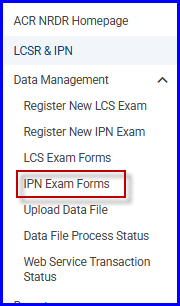
To update a form, start by clicking IPN Exam Forms in the Data Management menu.
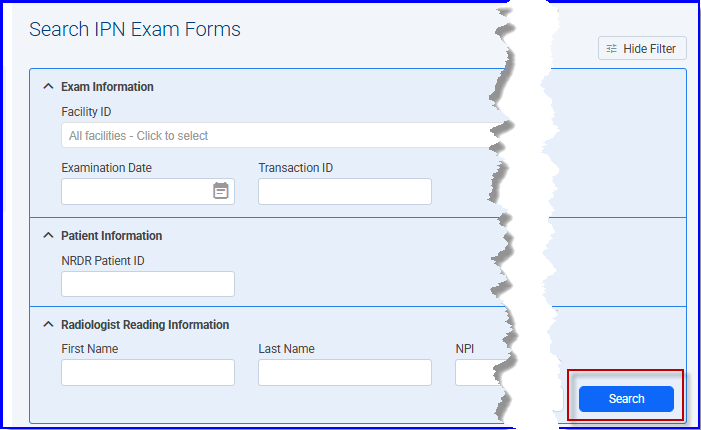
Enter identifying information in the filter fields and click the Search button.
A table of exams appears.

Click the link in the IPN Exam # column to open a form. Then:
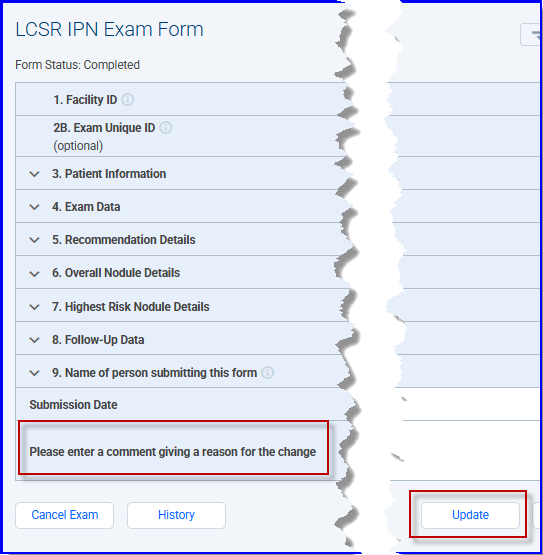
Make the desired changes.
Enter something in the "Please enter a comment giving a reason for the change" field.
Click the Update button.
Cancelling and Restoring an Exam Form
Exam forms can be cancelled and cancelled Exam forms can be restored.
To cancel a form, start by opening the form as described in Updating an Exam Form above.
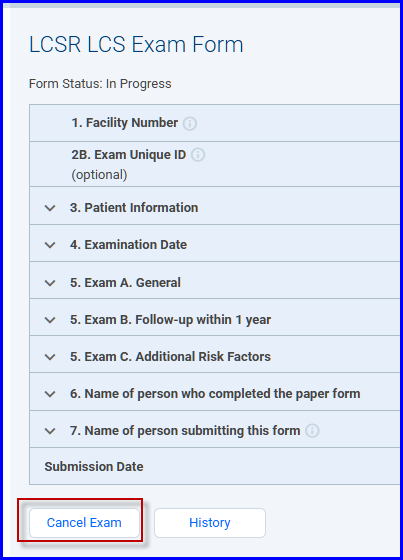
Scroll to the bottom of the form and click the Cancel Exam button.
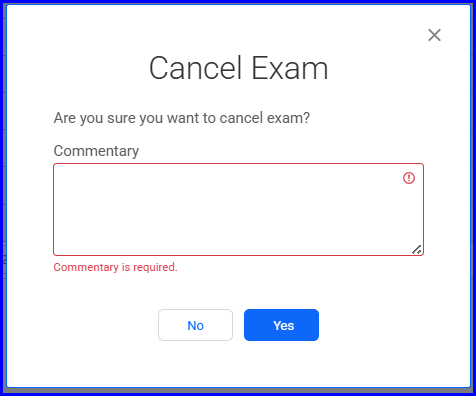
Enter a comment and click Yes:
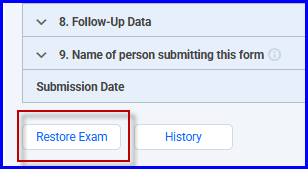
 Note that a Restore Exam button appears at the bottom of the form.
To review the change in status, click IPN Exam Forms in the Data Management menu to reopen the list of exams. The revised list shows the change in status to Cancelled.

To restore a cancelled exam form, select the IPN Exam # link to open the form, then scroll to the bottom of the form and click the Restore Exam button.