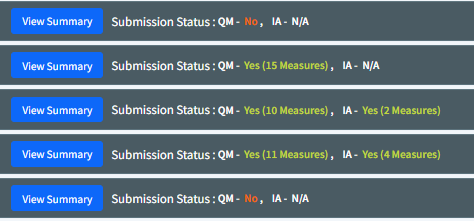
The quality section of the CMS Submission page allows you to select and review the measures you want the ACR to submit to CMS. Click anywhere within the section header to expand the section.
On the CMS Submission page, you will see a list of all TINs available under your user profile. To begin the submission process, expand a TIN and use the radial buttons to indicate whether:
1. You are reporting as a Group (TIN level) or as Individuals (NPI level)
2. You are reporting Improvement Activities via ACR's QCDR
3. You are reporting Promoting Interoperability via ACR's QCDR
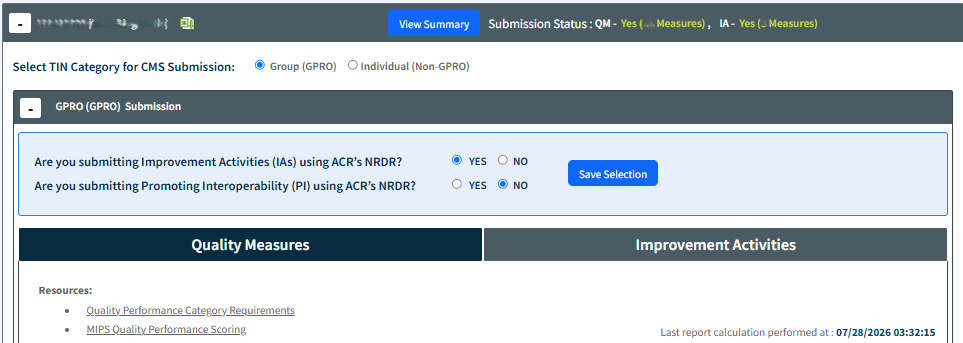
Next, scroll down to the Quality Measures section which will be selected by default. To select a measure, click the box next to I am selecting this measure for MIPS reporting.
Next, indicate whether the number of exams submitted represents all of the relevant exams for the year or, if not, what the actual total was for the year. Click Save to save your selections. Summary information from the Performance Report tab then appears for the selected measure, with the Performance Rate and Completeness metrics shown on the right side of the screen. The decile in which the Performance Rate falls is shown if the measure can be reliably scored against a benchmark.

Note: The decile indicates the lower bound on the number of points for the measure. The number of points will depend on where the Performance Rate falls within the decile.
A measure without a benchmark defaults to a minimum of 7 points in its first year, or 5 points in its second year. However, CMS will attempt to create same-year benchmarks using measure data submitted during the performance year, so the final number of points may be higher. See Quality Performance Scoring for more details.
Note: To help maximize your score, you can select more than the minimum measures required, and CMS will calculate your maximum quality score based on the measures you submit. Submitting extra data also helps CMS create future benchmarks with deciles that are more reflective of actual performance. See Quality Performance Scoring for details.
Once you have selected a measure and saved your changes, the selection will be reflected in the Performance Report tab the following day.
Submit Selections
To submit your data to CMS, click the Submit QM button under the Quality Measures section of your TIN. This action automatically sends your selected data to CMS and gives you a preliminary final score. This score does not always consider small/rural status and/or cost reweighting. CMS will provide an updated score through the QPP Portal sometime in the summer.
Quality measures will not be submitted for a TIN (GPRO) or physician NPI (Non GPRO) until you have both finalized your measure selections and completed the Attestation section to authorize the ACR to submit on your behalf.
Once you have submitted your measures, you may still change your selected measures at any time until March 31. To do so, simply uncheck the measures you no longer wish to submit and select your updated measure choices, then click the Submit QM button again.
Improvement Activities and Promoting Interoperability Measures
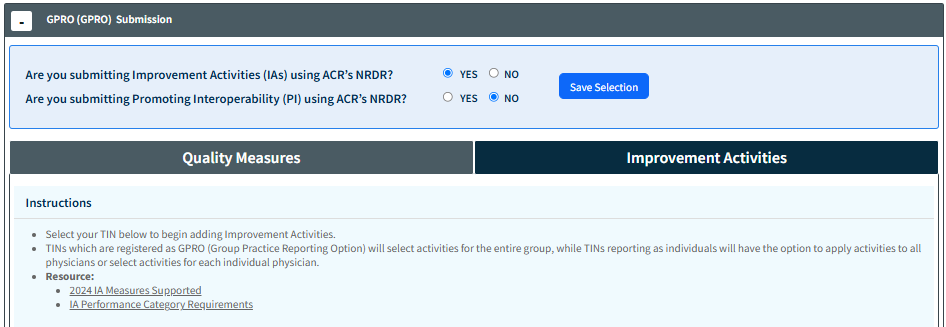
After submitting Quality Measures, select the Improvement Activities header and, if applicable, the Promoting Interoperability header. Repeat the same process: make your selections, save them, click Submit IA and Submit PI. Similarly, IA and PI selections can be altered by remaking your selections and resubmitting using the Submit buttons.
Once you've completed submission for all categories you intend to report, your CMS Submission landing page will update your TIN header to show what has successfully been submitted.